
Copying BigQuery Data#
There are two relational databases that we will use for the first part of this course. They are stored in my instance of BigQuery and you must copy them to your BigQuery project so you can use them.
🚨 Permissions Needed! 🚨#
You MUST have permission to copy the data! Ensure you complete the “Google Cloud Platform Setup” in Brightspace or you WILL NOT be able to proceed with these instructions.
Copy the Datasets#
These instructions are specific to the class_demos dataset used in classroom demonstrations. Repeat these instructions for each dataset you will use. Simply substitute the name of the dataset where necessary in the instructions below.
Instructions#
Step 1: Access BigQuery Console#
Navigate to the BigQuery in the Google Cloud Console: https://console.cloud.google.com/bigquery
Step 2: Go to Data Transfers#
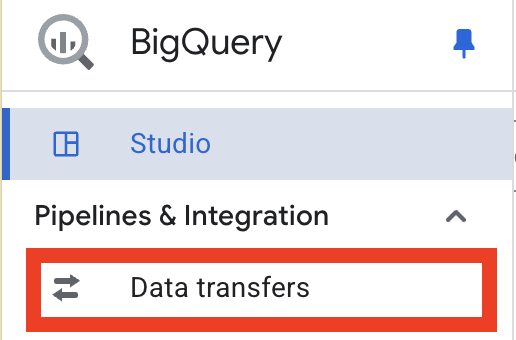
In the left navigation pane:
Click “Data Transfers” (under the “Pipelines & Integrations” section)
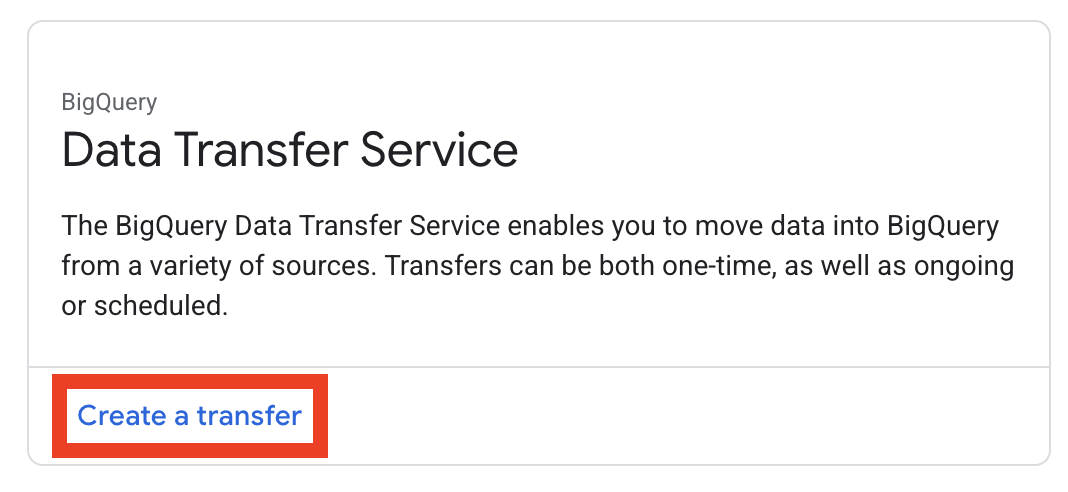
Then click Create a Transfer
Note
If you are asked to enable the Bigquery Data Transfer API, you should do so
Step 3: Configure the Transfer#
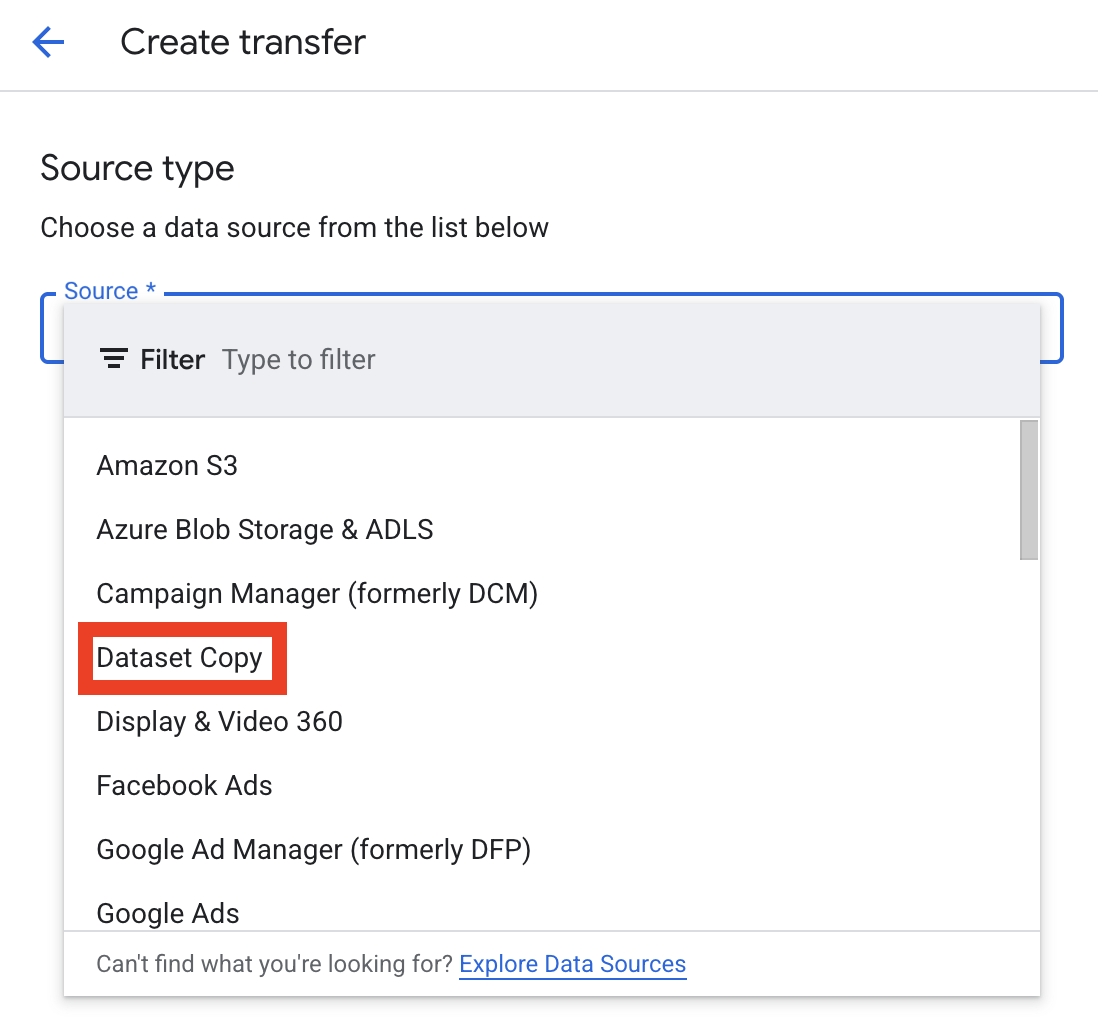
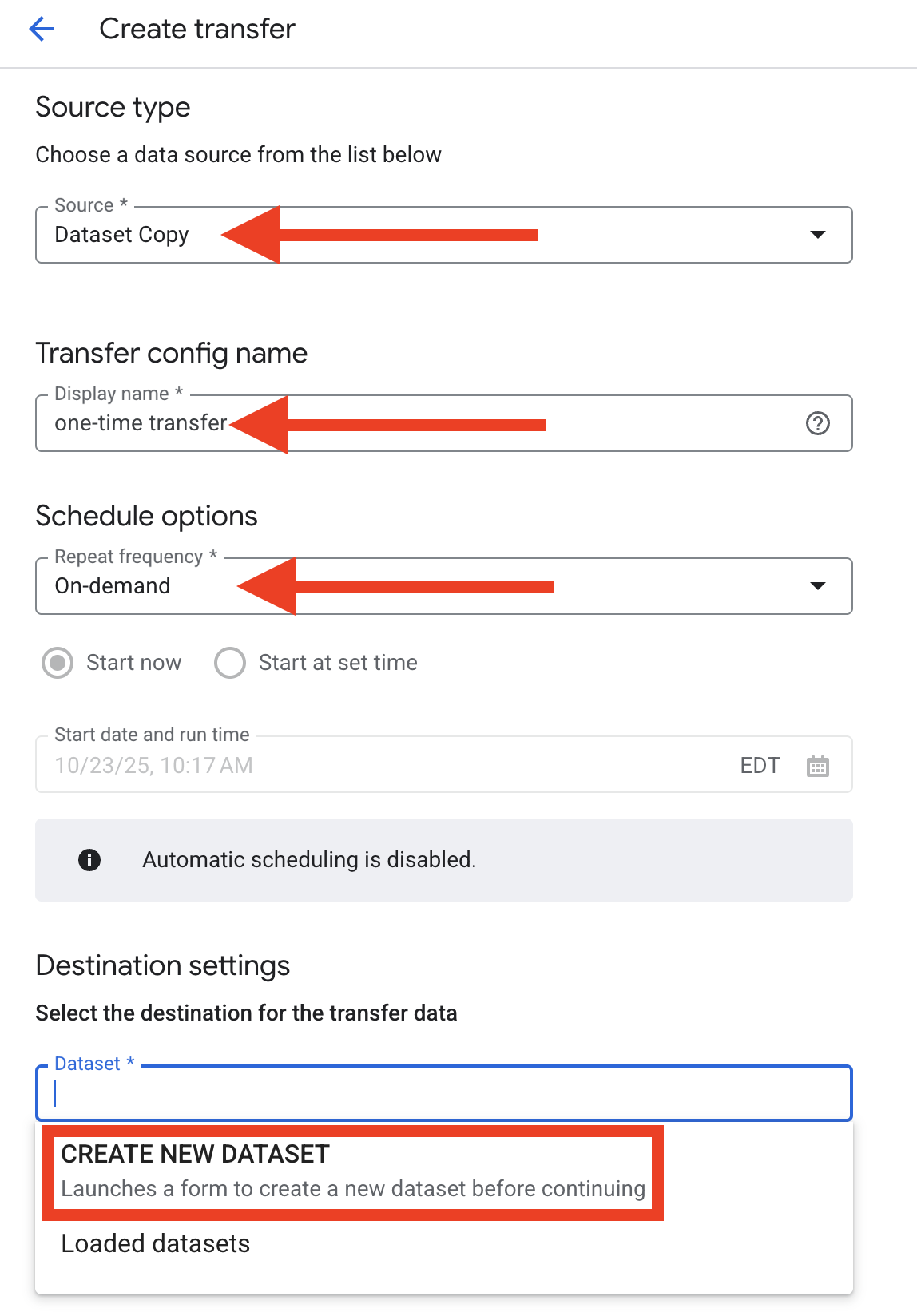
In the Create transfer dialog, do the following:
In the Source dropdown, choose “Dataset Copy”
Enter a value for “Transfer config name”
In the Schedule options dropdown, choose “On-demand”
In Destination settings, click “Dataset” and then “CREATE NEW DATASET”
Step 4: Create a Dataset#
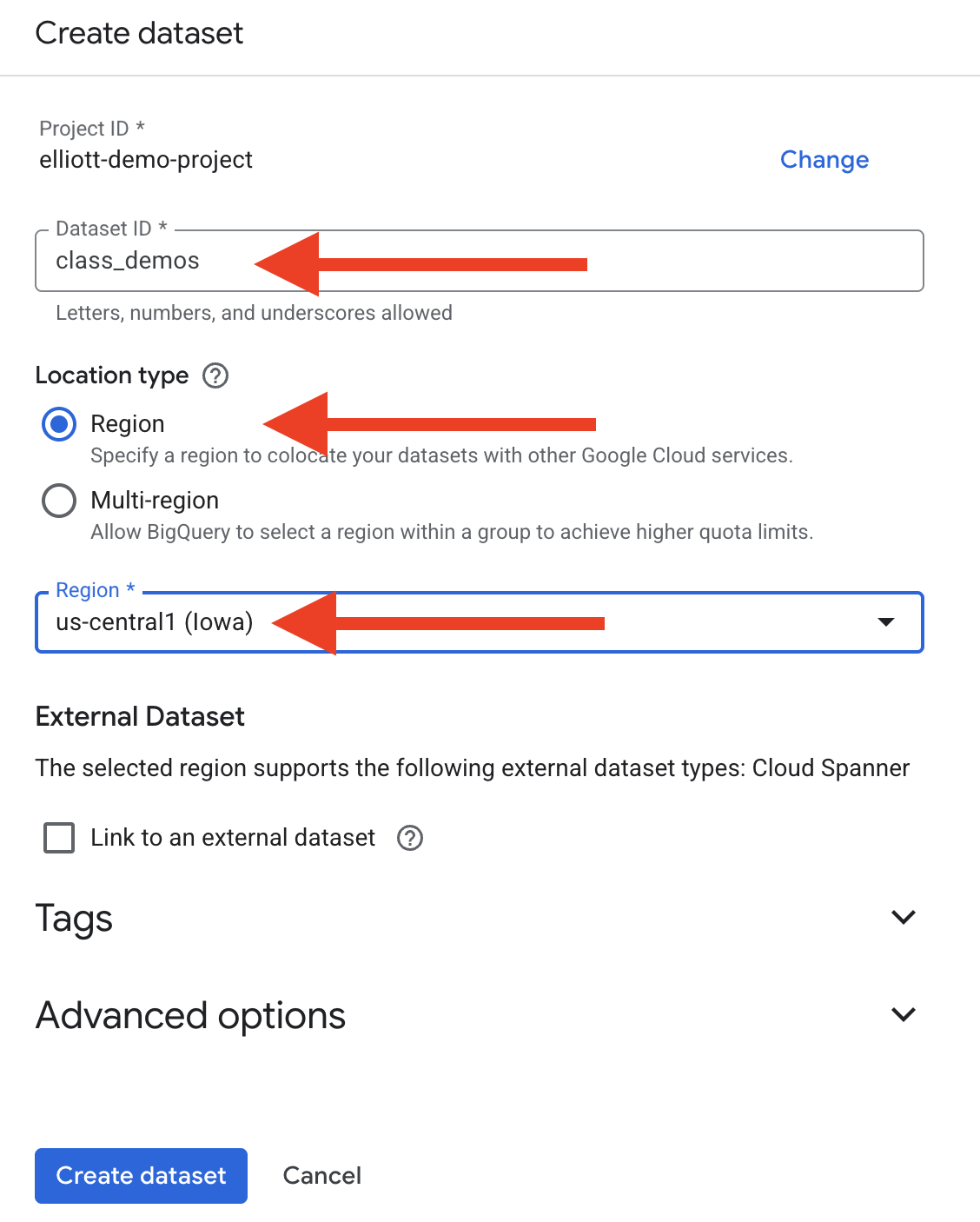
In the Create dataset dialog, do the following:
Enter a Dataset ID a. Use
class_demosfor the dataset in this example. (You will update this for later data transfers.)For Location type, choose “Region”
In the Region * dropdown, choose
us-central1 (Iowa)Click “Create dataset”
Step 5: Select your Dataset#
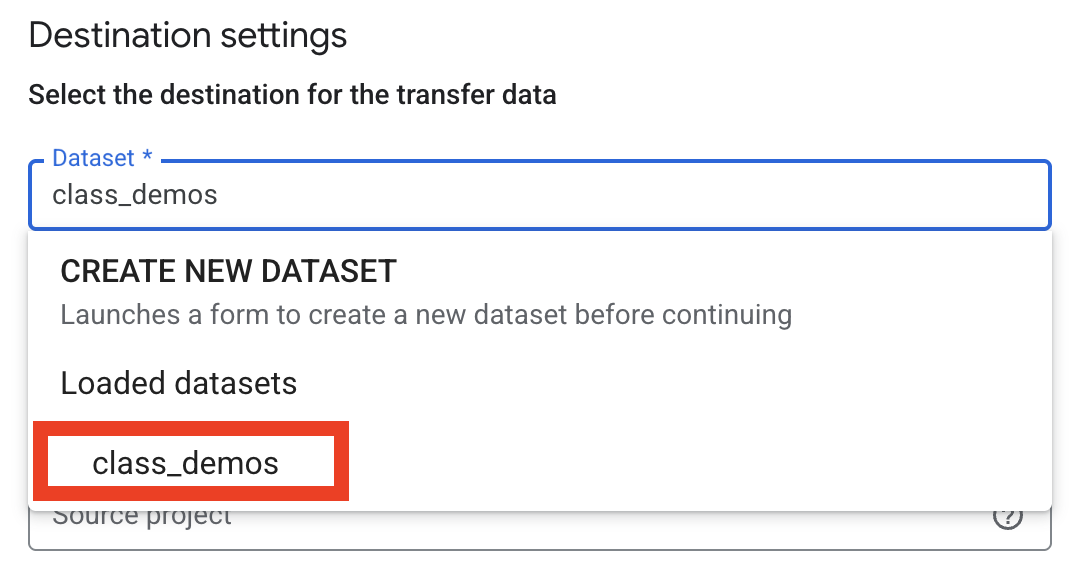
Back in the Create transfer dialog, do the following:
Choose
class_demosfrom the Destination settings dropdown
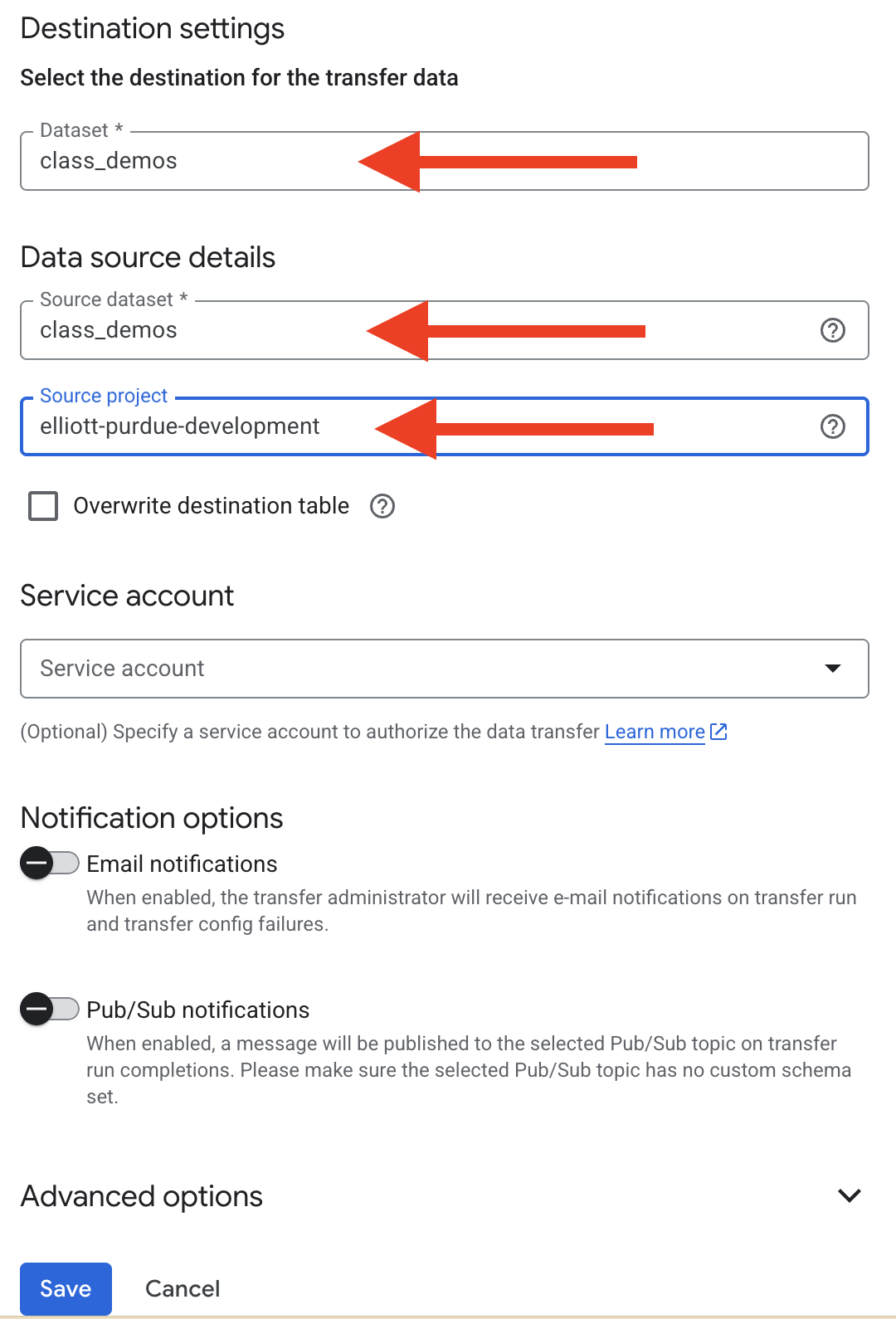
For Source dataset enter
class_demosfor Source project enter
elliott-purdue-developmentClick Save
Step 4: Run the Transfer#
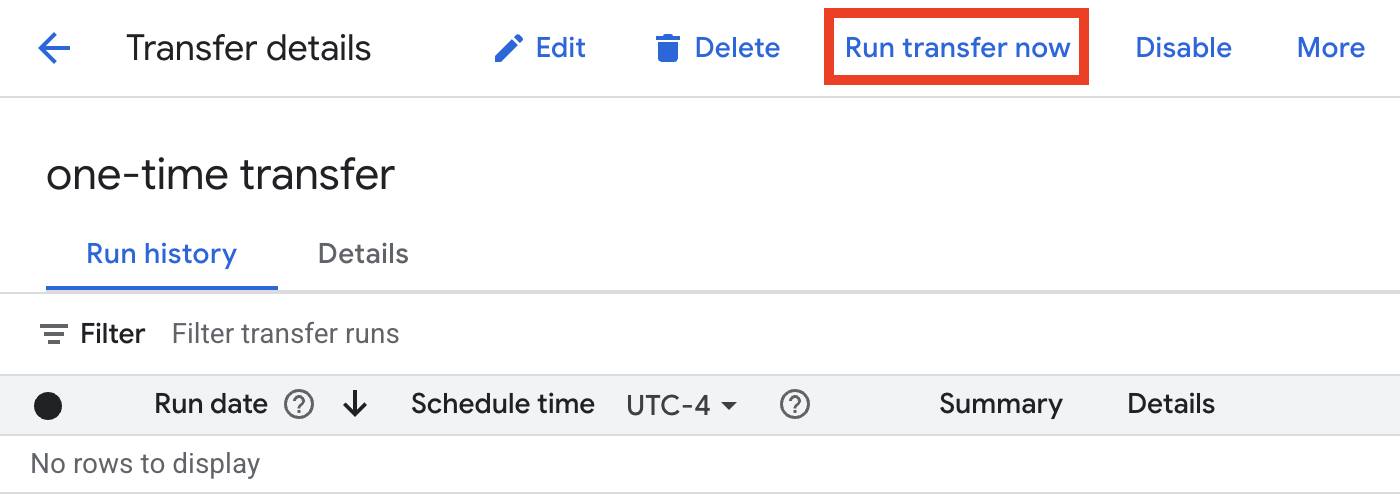
On the Transfer details page, do the following:
Click the “Run transfer now” button at the top of the screen
In the “Run transfer now” dialog, choose “Run one time transfer”
Click OK
Step 5: Verify the Copy#
In the Explorer panel, navigate to your own project
Expand your project to see the datasets
Verify that the
class_demosdataset (or whatever name you chose) appearsClick on the dataset and expand it to confirm all tables have been copied
You can click on individual tables and preview the data to ensure the copy was successful
Troubleshooting Tips#
If you cannot see the instructor’s project:
Verify you have been granted BigQuery Data Viewer access
Check that you’re using the correct project ID:
elliott-purdue-developmentTry refreshing the BigQuery console
If the copy fails:
Check that you have sufficient permissions in your destination project
Ensure your project has BigQuery API enabled
Verify you have enough storage quota in your project
Check that the destination dataset name doesn’t already exist
If tables appear empty after copying:
The copy job might still be in progress - check Job History
Refresh the BigQuery console
Check the “Details” tab of each table for row count
Important Notes#
The copied dataset will belong to your project and will incur storage costs based on your project’s billing
Any queries you run on the copied dataset will be billed to your project (Remember! You are using GCP credits and the billing will be free to you! Also, the costs for this project will be minimal.)
The copy creates a snapshot at the time of copying - it won’t sync future updates from the instructor’s dataset